
Before you send your newsletter, check how it looks for families on their phones and on paper. Everything here is in the toolbar at the top of the newsletter builder.

Preview on desktop, tablet and phone #
Click Preview to see the newsletter exactly as families will. Use the icons along the top to switch between screen sizes.

From left to right:
- Desktop
- Tablet, landscape
- Tablet, portrait
- Phone, landscape
- Phone, portrait
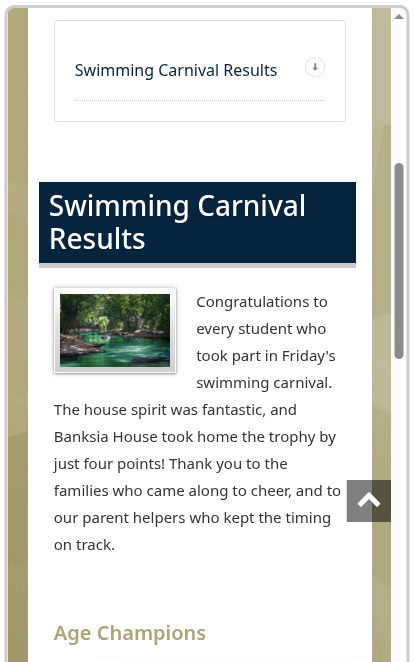
Click Close Preview to go back to editing.
Tip: Most families read the newsletter on their phone. A quick check in Phone, portrait view catches photos that are too small and headings that are too long.
Set up the printed newsletter #
Click Print Layout to see the newsletter as a printable A4 document. The options bar lets you fit it to the page:


- Columns: one or two columns of articles.
- Density: Compact fits more onto each page.
- Margins: Narrow gives more room on the page.
- Tables: let tables break across pages, keep them together, or squeeze them up.
- Galleries: print every gallery photo, or just the first 4 or 8.
- Hide Images: leave photos out for a text-only copy.
The page count updates as you change options. When you’re happy, click Save Print Layout so everyone who prints the newsletter gets the same layout, then click Print.
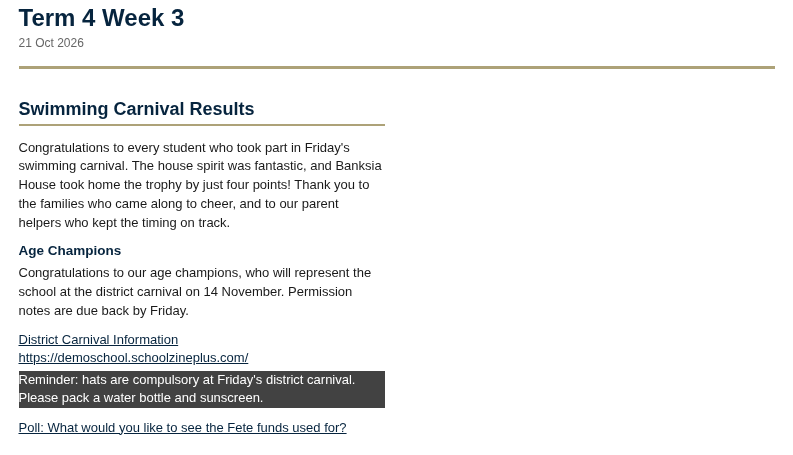
Tip: To keep an article out of the printed newsletter, or show it only on paper, use No Print or Print Only in the article’s settings.
Newsletter Settings #
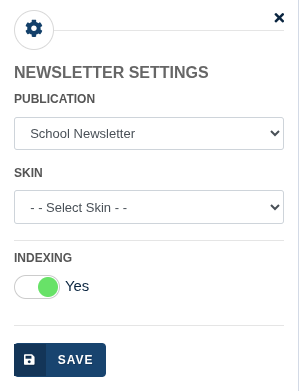
Click Newsletter Settings to change, for this newsletter only:
- Publication: which publication, and so which list of families, the newsletter belongs to.
- Skin: the design. Leave it blank to use your publication’s usual design.
- Indexing: turn the table of contents at the top on or off.
Click Save in the panel. Refresh the page to see a new skin.
Compact View #
Click Compact View to hide your school’s side panel and menu while you edit. That leaves more room for your content. Click it again to bring them back. It only changes your own view: families still see the full design.
Related articles #
Need a hand? #
Our Customer Success Team is here to help. Call 1300 795 503, email [email protected] or start a live chat in your Schoolzine account.


