
Your SZ App home screen is a grid of tiles that take families to the things they use most, like your latest newsletter, the school calendar or an absentee form. You decide which tiles appear, in what order, and which groups families can join.
Select Manage SZ App in the Control Centre menu. The Tiles, Groups and Settings tabs are next to Feed.
Tiles #
The Tiles tab shows your app’s home screen as families see it.
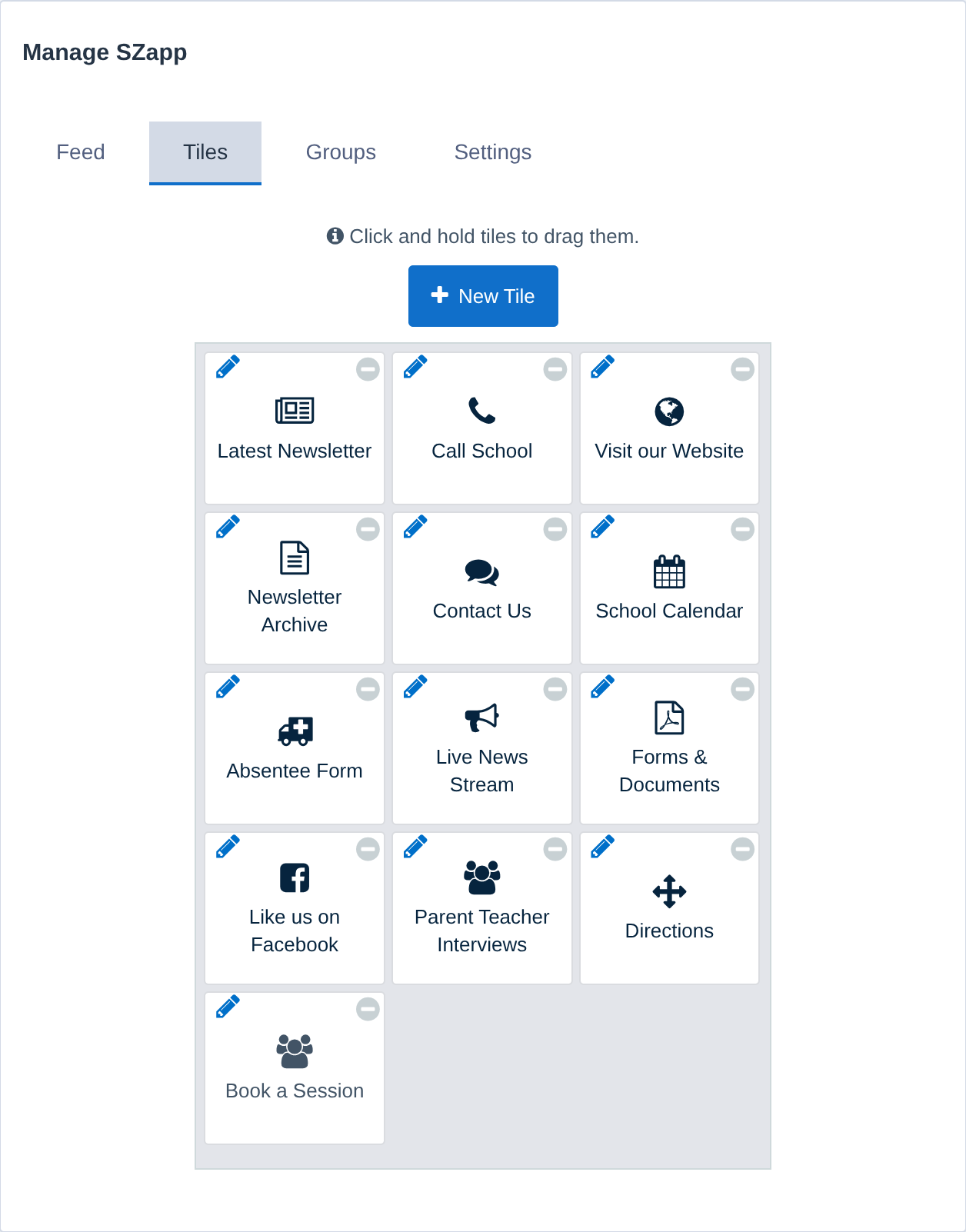
- Reorder tiles: click and hold a tile, then drag it to a new spot.
- Edit a tile: click its pencil.
- Remove a tile: click the grey minus in its corner.
Add a tile #
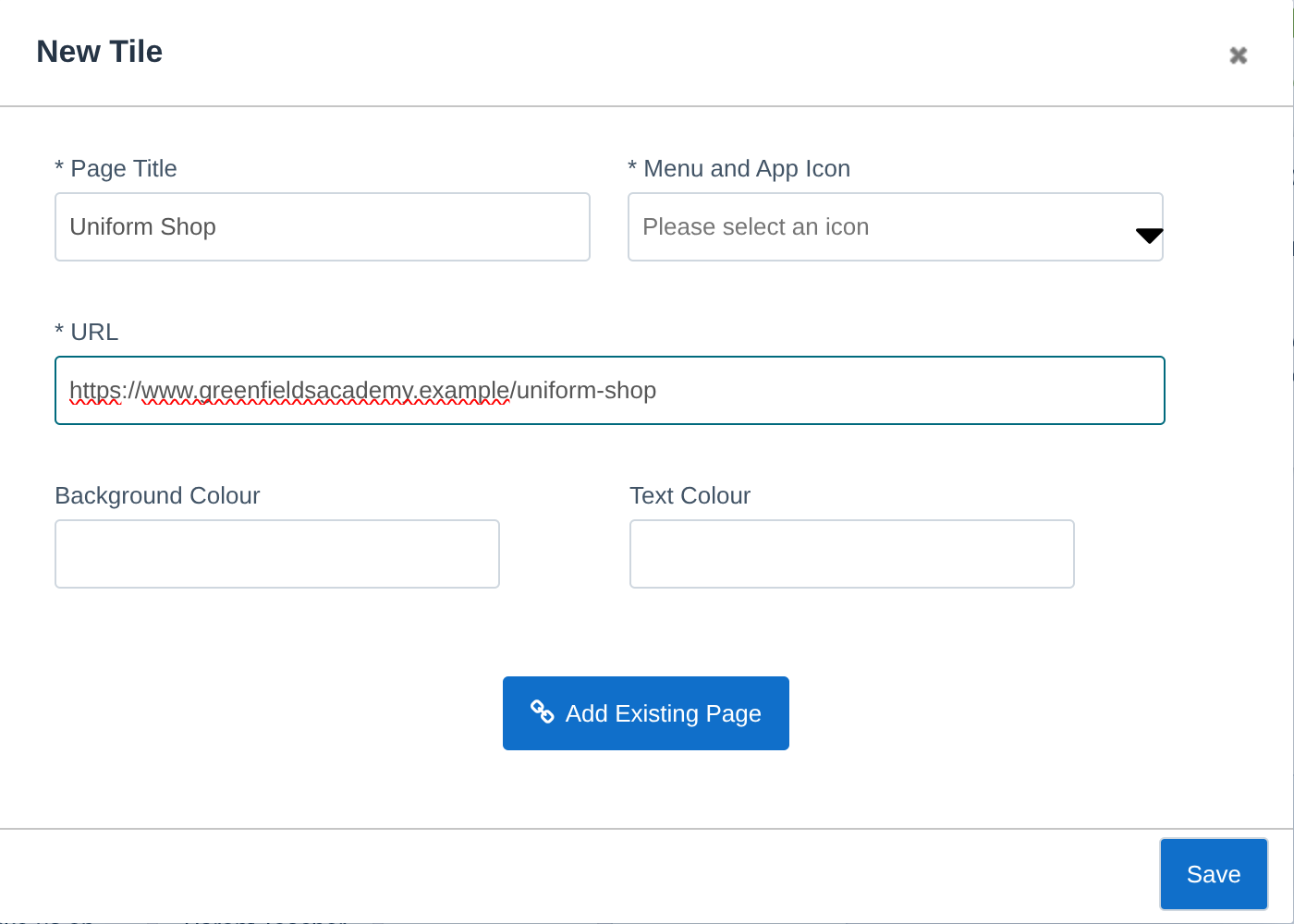
- Click New Tile.
- Type a Page Title, for example “Uniform Shop”.
- Choose a Menu and App Icon.
- Enter the URL the tile opens. To link to a page on your school website instead, click Add Existing Page and pick it.
- Optionally set a Background Colour and Text Colour.
- Click Save.
Groups #
The Groups tab lists the groups families can choose from in SZ App, such as a year level or a sports team. Joining a group means they get the notifications you send to it.
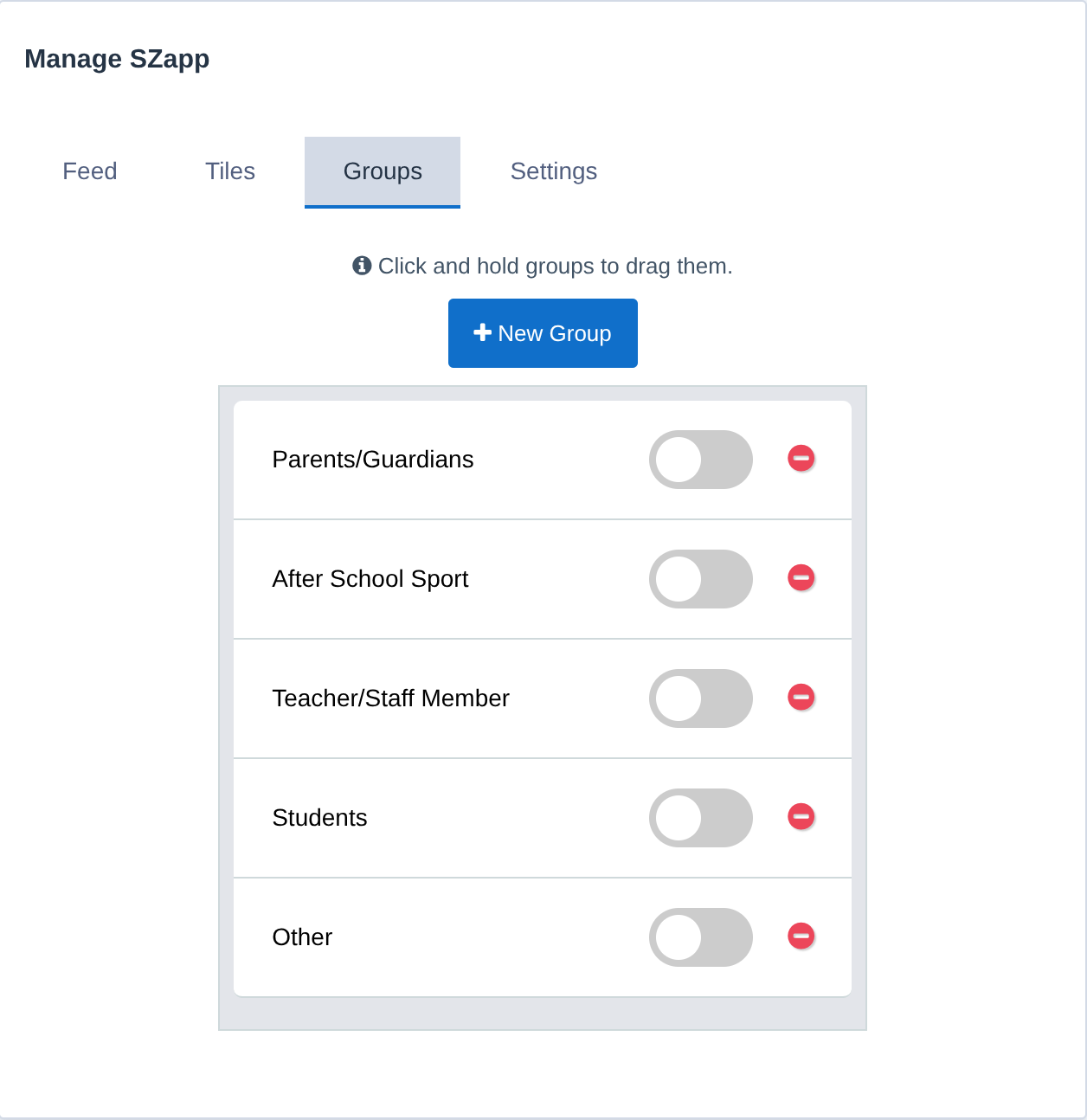
- Add a group: click New Group, type a Group Name, or click Link Existing Group to offer a group you already have.
- Reorder groups: click and hold a group, then drag it. Families see them in this order.
- Remove a group from the app: click the red minus.
Settings #
The Settings tab shows a preview of your app’s header and has two sections. Click Save when you’ve made changes.
Design & Layout
- Primary Colour, Background Image and Logo set your app’s look.
- Disable Background Blur, Hide Title and Hide Logo fine-tune the header.
- Enable Google Translate lets families read the app in their own language.
Security & Registration
- Force users to register asks families to sign up before they can use the app.
- Secure passcode adds a code families must enter to get in.
Related articles #
Need a hand? #
Our Customer Success Team is here to help. Call 1300 795 503, email [email protected] or start a live chat in your Schoolzine account.


