
Skip to content
  • Who We Help

    Dioceses

    A communications system built from dioceses’ feedback.

    Associations

    When you’re extremely busy, even a morsel of help can make the world of difference[.

    Small Schools

    Engage your school community with one simple system and a lot of useful support.

    Large Schools

    A simple communications solution for stretched school staff.

    Multi-campus Schools

    A simple communications solution for stretched school staff.

    Parents & Caregivers

    Engage in your child’s education and feel fully connected.

    Advertisers

    Helping parents and guardians grow their businesses through school communities.

    Learn

    • Enterprise Solutions
    • Customer Stories
    • FAQs
    • News
    Book a demo
  • Our Products

    Newsletters

    Delivering the clear, consistent communication that is central to community connection.

    Websites

    Purpose-built sites for the education sector.

    Enterprise

    A communications platform balancing central governance with individual school identity.

    Image Guardian™

    Manages image consent, access and removal to protect students.

    Emails and Texts

    Send consistent communication at the touch of a button.

    Szapp

    A parent mobile app for instant communication.

    EduTranslate

    Translating words and their context for inclusive communities.

    Session Keeper

    Parent-teacher booking system improved through school feedback.

    Existing Customers

    • Login
    • Knowledgebase
    • New support ticket
    • Book training
    Book a demo
  • Company

    About Us

    Schoolzine began with a simple belief: when parents are engaged in their child’s school life, students do better. Nearly two decades on, that belief still guides everything we build.

    Learn more about us
    View our brands
    Last story from dioceses

    St Simon Peter Catholic Primary School WA

    Schoolzine worked closely with the school to integrate a responsive digital newsletter, mobile app and website — all aligned with the school’s branding and supported by an easy-to-use CMS.

    View all dioceses stories
    Last story from small schools

    Quorn Area School SA

    Schoolzine worked closely with the principal and leadership team to integrate one platform for parent and community engagement: an accessibility-compliant, responsive digital newsletter, mobile app and custom-built website.

    View all small school stories
    Last story from large schools

    Mount Annan High School NSW

    School teams, like parents, are busy people, so it was important to choose a provider that offered multiple channels without duplication of effort. 

    View all large school stories
  • Contact
  • Login
  • Who We Help
    • Dioceses
    • Associations
    • Small Schools
    • Large Schools
    • Multi-campus schools
    • Parents & Caregivers
  • Our Products
    • Newsletters
    • Websites
    • Image Guardian
    • Enterprise
    • Szapp
    • Emails and Texts
    • EduTranslate
    • Session Keeper
  • Company
    • About
    • Our Brands
    • Customer Stories
    • FAQs
    • News
  • Contact
  • New Support Ticket
  • Book a demo
  • Who We Help
    • Dioceses
    • Associations
    • Small Schools
    • Large Schools
    • Multi-campus schools
    • Parents & Caregivers
  • Our Products
    • Newsletters
    • Websites
    • Image Guardian
    • Enterprise
    • Szapp
    • Emails and Texts
    • EduTranslate
    • Session Keeper
  • Company
    • About
    • Our Brands
    • Customer Stories
    • FAQs
    • News
  • Contact
  • New Support Ticket
  • Book a demo
  • Login
Get Started

Newsletters

6
  • Sending and distributing a newsletter
  • Previewing and printing a newsletter
  • Working with articles
  • Adding content to an article
  • Creating a newsletter
  • Getting started with the newsletter builder

Calendar

2
  • Importing events
  • Adding an event to your calendar

Contacts and Groups

1
  • Creating a group and adding contacts

Communication

2
  • Sending a message with Communicate
  • Sending a Quick Send message

SZ App

2
  • Sending an SZ App notification
  • Managing your SZ App

Text Messaging

1
  • Sending a text message

Forms and Surveys

2
  • Creating a web form
  • Creating a poll

Websites

2
  • Creating a web page
  • Managing content holders and media

Streams

1
  • Creating a news stream

SZ Bookings

1
  • Setting up SZ Bookings
View Categories
  • Home
  • Docs
  • Communication
  • Sending a message with Communicate

Sending a message with Communicate

3 min read

0:00 / 3:16
  • View as Markdown Open this page as plain Markdown (opens in a new tab)
  • Open in ChatGPT Ask questions about this page (opens in a new tab)
  • Open in Claude Ask questions about this page (opens in a new tab)
  • Open in Google AI Studio Ask questions about this page (Google account required) (opens in a new tab)

Communicate lets you write one message and send it to families and carers on the channels they use: email, an SZ App notification, an SMS, your newsfeed or your school’s social media. You can send it straight away or schedule it.

Find Communicate #

In the Control Centre, select Communicate from the menu. The page lists your recently edited messages and how your last email performed. From the toolbar you can start a New Message or manage your Email Templates, Social Post Templates, SMS and newsfeed.

The Communicate toolbar

Create a message #

A new message has five steps: Channels, Message Details, Message Content, Recipients and Review & Send. Click Save at any step to come back to it later. Saved messages show as Draft on the Communicate page.

1. Choose your channels #

Click New Message, then click each channel you want to use. A tick shows on the ones you’ve selected. Send to All picks every channel at once.
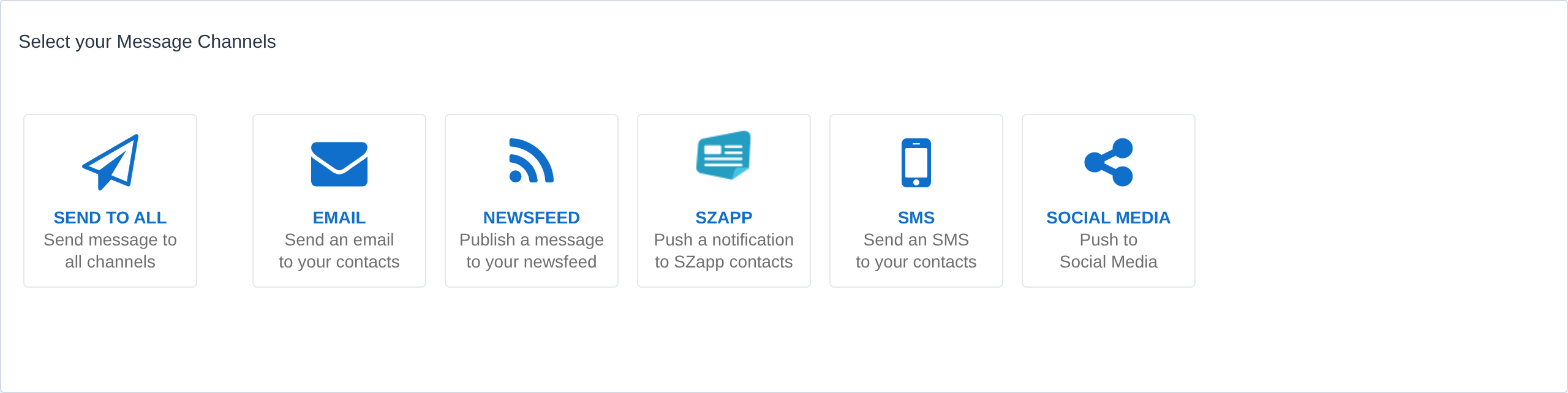
Choosing the message channels

Channels that aren’t turned on for your school are greyed out. Contact our Customer Success Team if you’d like one switched on.

Click Next.

2. Message details #

Give the message a Message Name. Families don’t see this, so pick a name that helps your team find it later, such as “Athletics Carnival reminder”.

Set the Send Date and Send Time. Leave them as they are to send as soon as you finish, or choose a later date and time to schedule the message.
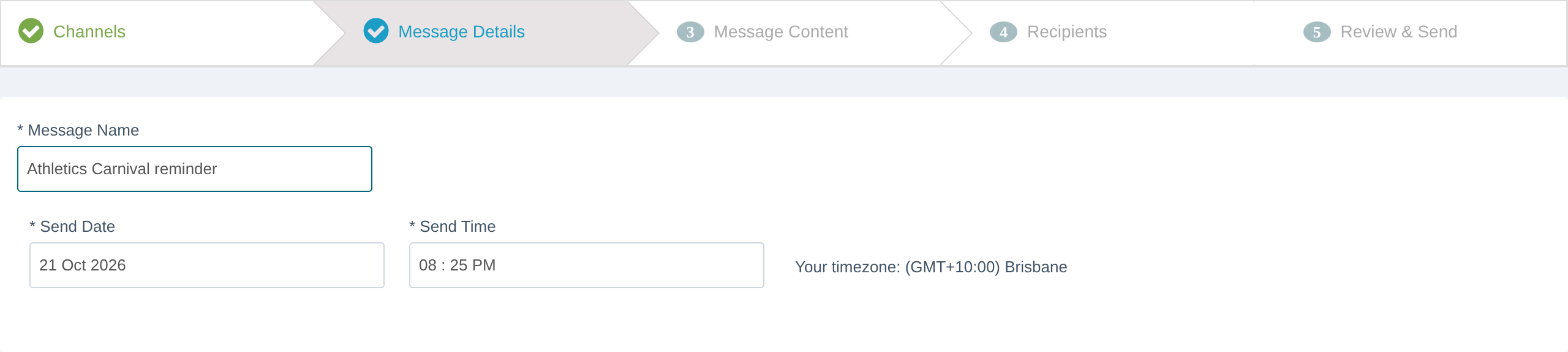
The Message Details step

3. Message content #

You fill in content for each channel you chose. For email there are three parts.

Email Detail: the Email Subject, plus the From Email and From Name that families see. Click Show Authorised to pick from your school’s approved sending addresses. Expand Edit Email Preview Text to set the short line that many inboxes show under the subject.
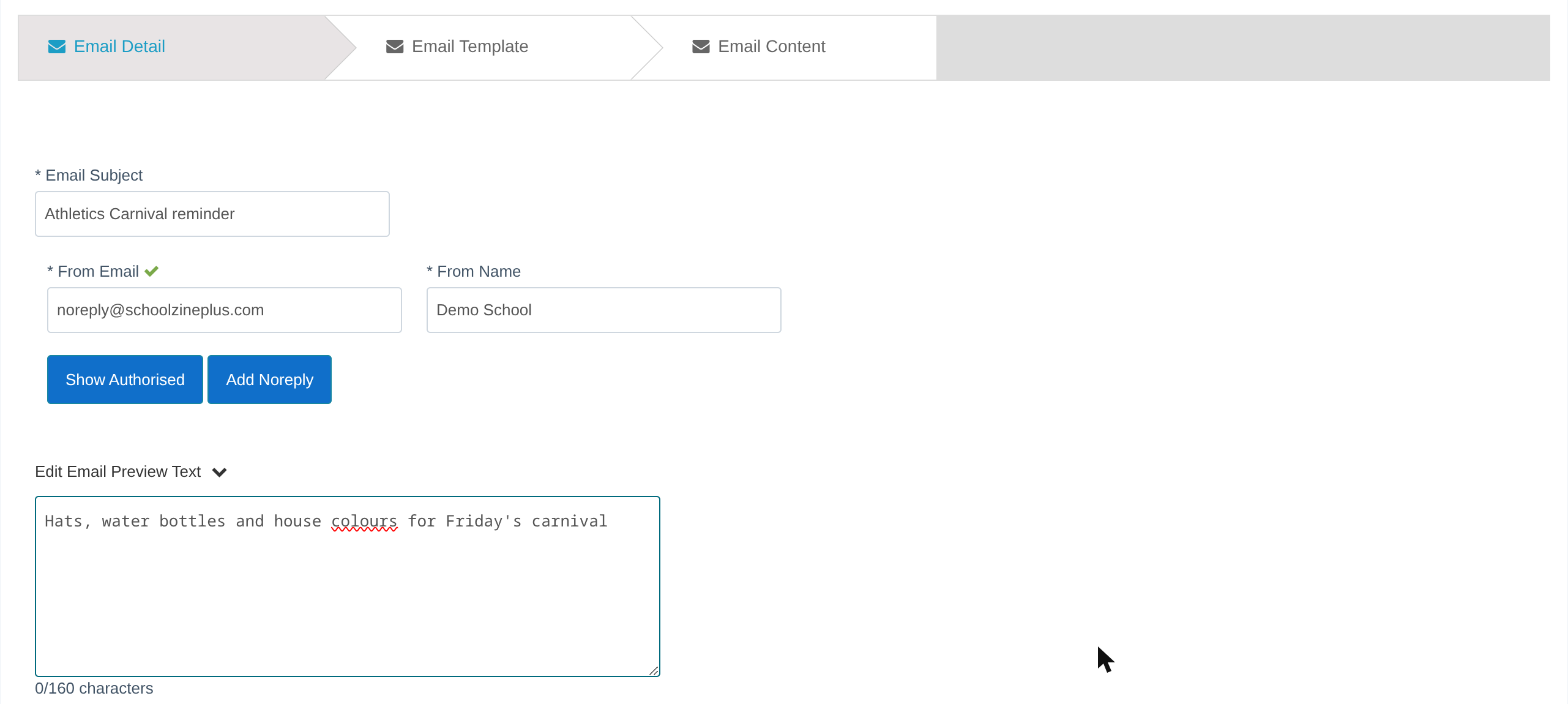
The Email Detail step

Email Template: choose a starting design. Blank Template starts from scratch. Use Preview Template to see a design at full size first.
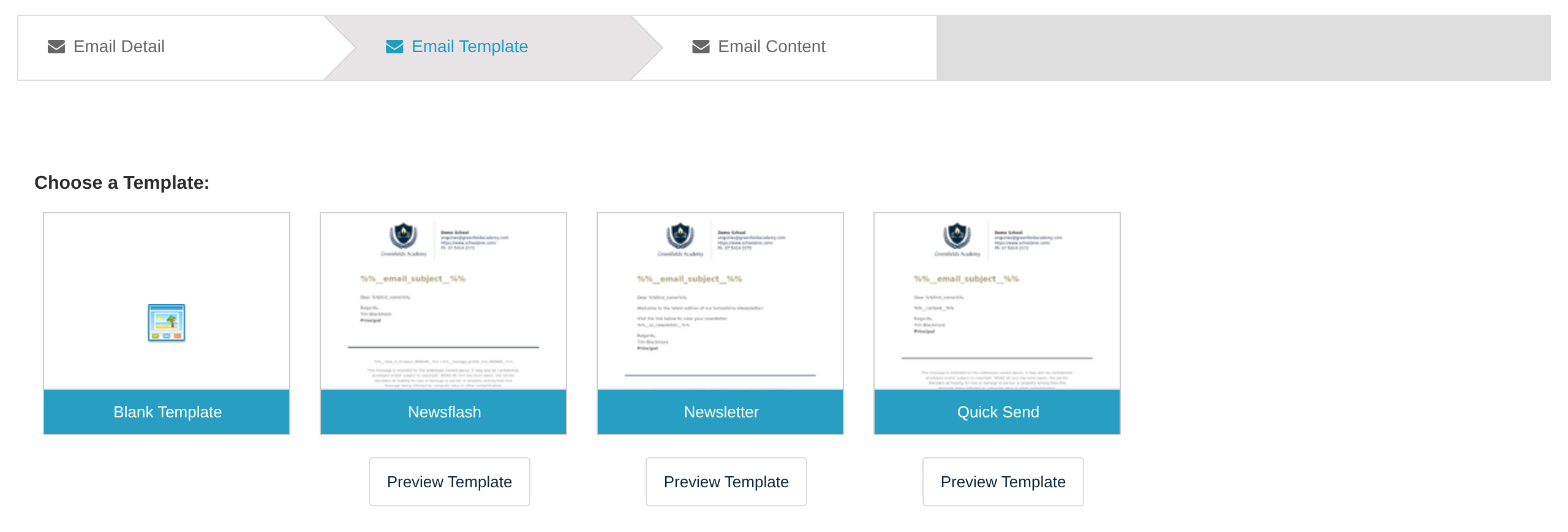
Choosing an email template

Email Content: write your message in the editor. The template already has your school’s logo and contact details.
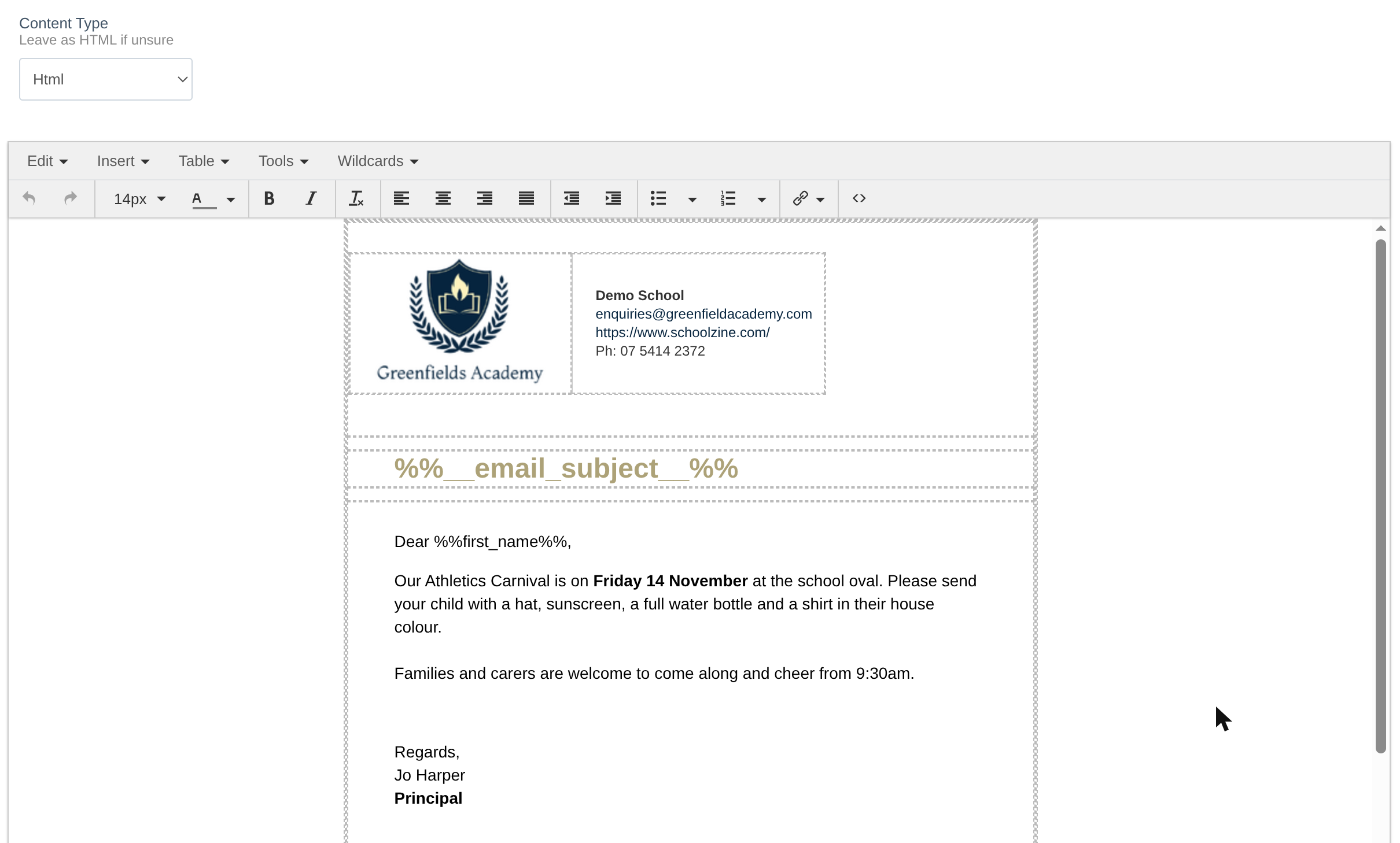
Writing the email

Use the Wildcards menu to personalise the email. For example, choose Contacts → First Name and each family sees their own name where you put it.
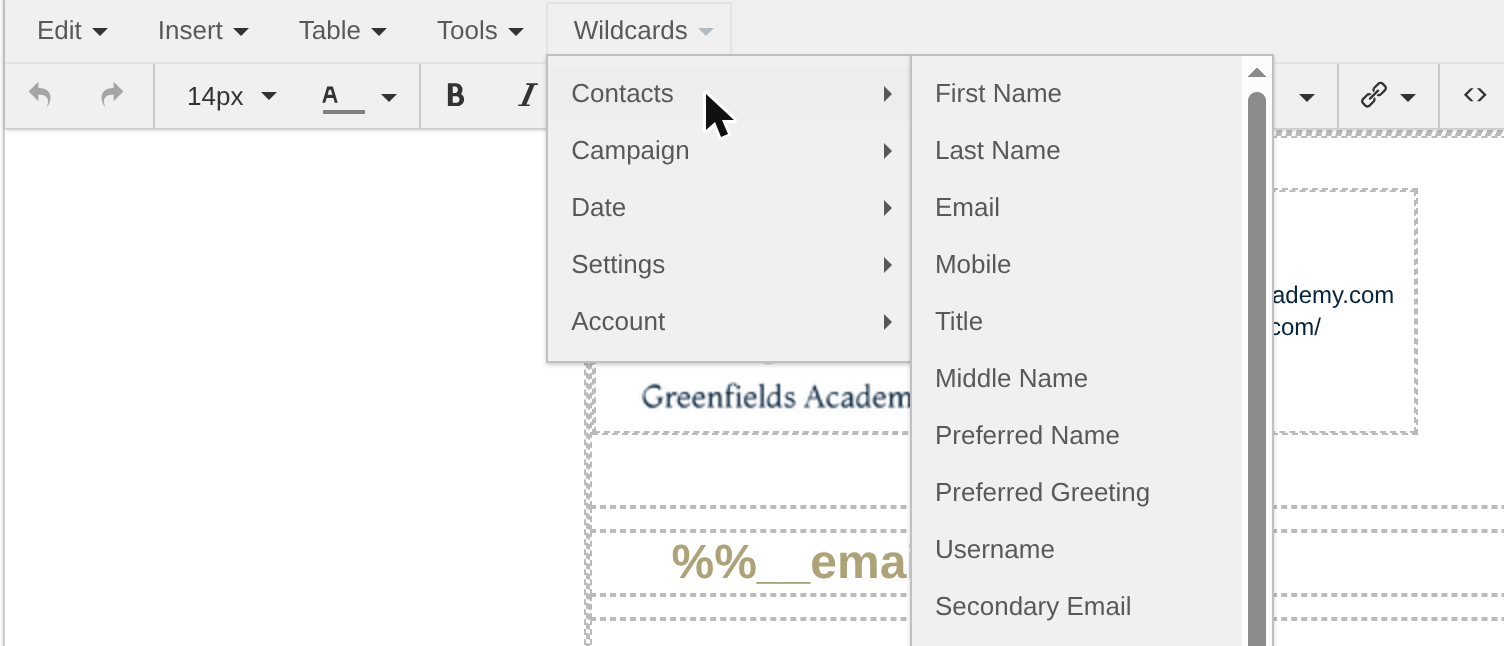
The Wildcards menu

4. Recipients #

Choose who receives the message.

  • Under Add or exclude groups, pick one or more groups, then click Add Group. Each group shows how many email addresses it has.
  • Under Add or exclude contacts, search for a person by name, email or mobile and click Add Contact.
  • Use Exclude Group or Exclude Contact to leave people out.
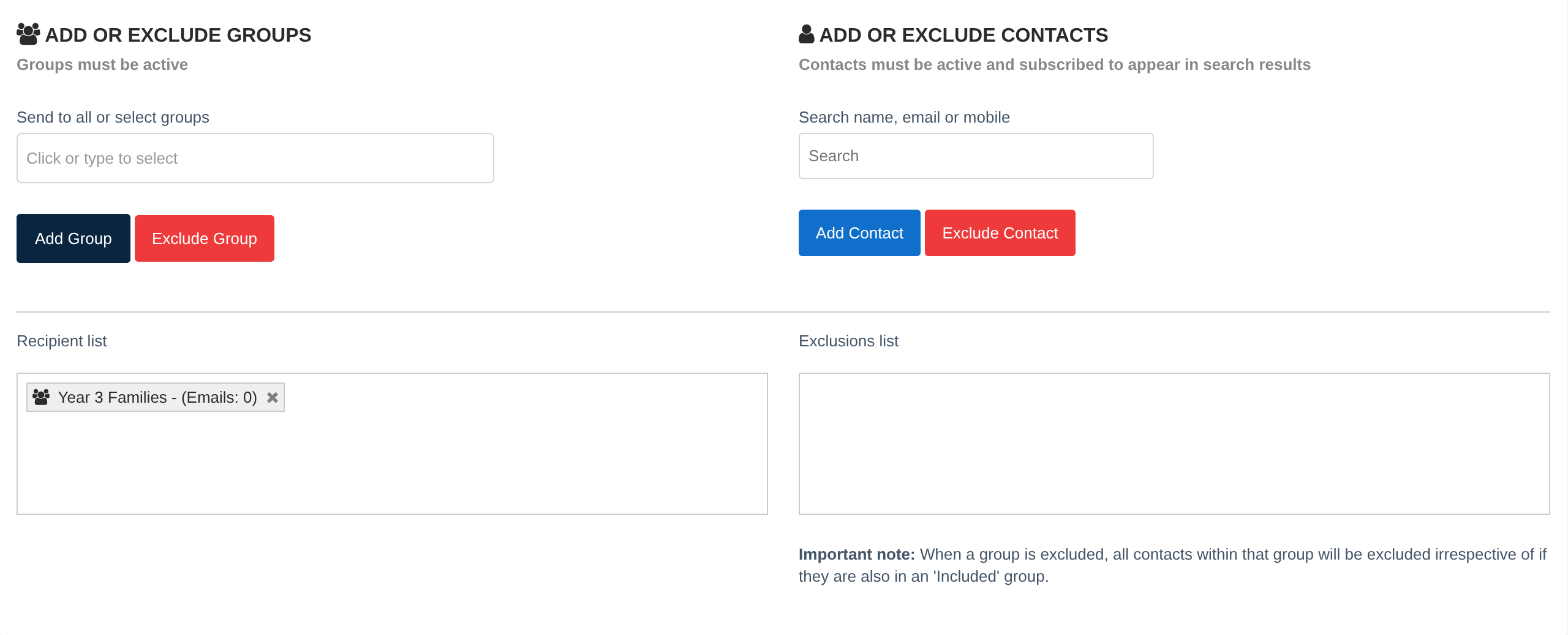
Adding a group to the recipient list

Important: When you exclude a group, everyone in it is left out, even if they’re also in a group you’ve added.

Only active groups, and contacts who are active and subscribed, appear in the lists.

5. Review and send #

Check the summary of your message and use the Email Preview and Recipient List tabs to make sure it all looks right.

  • Click Send Test Email to send a copy to yourself first.
  • Click Complete & Send to finish. If you set a later send time, the message is scheduled and sends at that time. Otherwise it goes now.

Tip: Always send yourself a test email first. It’s the easiest way to catch a typo or a broken link before families see it.

Related articles #

  • Sending a Quick Send message
  • Creating a group and adding contacts

Need a hand? #

Our Customer Success Team is here to help. Call 1300 795 503, email [email protected] or start a live chat in your Schoolzine account.

Updated on 21/10/2026
communicate email messages

What are your Feelings

  • Happy
  • Normal
  • Sad

Share This Article :

  • Facebook
  • X
  • LinkedIn
  • Pinterest
Sending a Quick Send messageSending a Quick Send message

Leave a Reply Cancel reply

Your email address will not be published. Required fields are marked *

Table of Contents
  • Find Communicate
  • Create a message
    • 1. Choose your channels
    • 2. Message details
    • 3. Message content
    • 4. Recipients
    • 5. Review and send
  • Related articles
  • Need a hand?

Better communication.
Stronger school communities.
Real support.

Get in touch
Book a demo

Company

  • About Us
  • News
  • Customer Stories
  • Contact Us

Solutions

  • Diocese
  • Associations
  • Large School
  • Small School
  • Multi-campus School
  • Parents & Caregiver
  • Advertisers

Support

  • Book a Demo
  • Existing Customer Support
  • Knowledgebase
  • Login
  • FAQs
  • Installing Szapp

Social

  • Facebook
  • Instagram
  • Linkedin
  • Youtube

Legal

  • Terms
  • Privacy
  • Cookies
  • Release Notes
  • System Status

© 2026 Schoolzine. All rights reserved. ABN: 79 123 804 991