
Events you add to your school calendar appear on your website’s calendar, and you can add them to your newsletters too. That way families see the same dates everywhere.
Find your events #
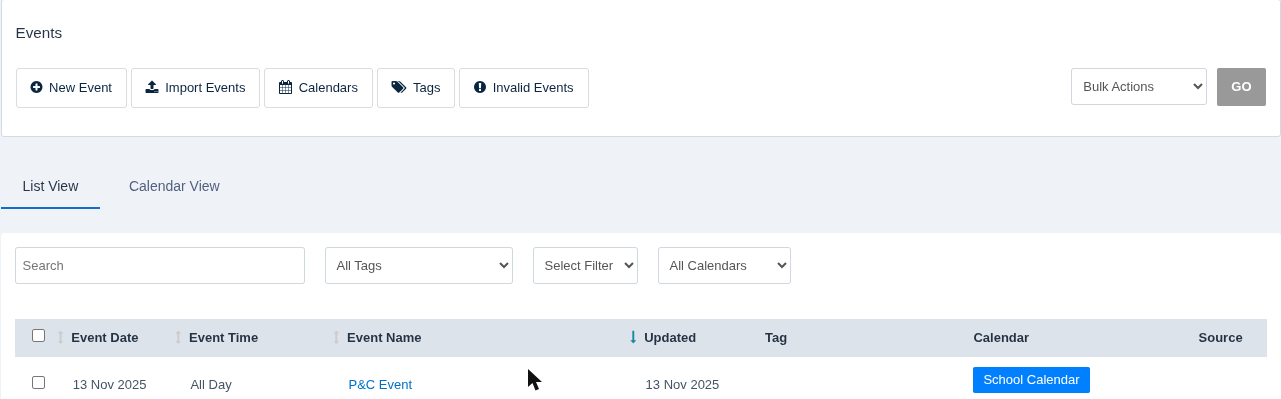
In the Control Centre, select Events from the menu. From here you can add a new event, import a batch of events, and manage your calendars and tags. Switch between List View and Calendar View to see your events either way.
Add an event #
- Click New Event.
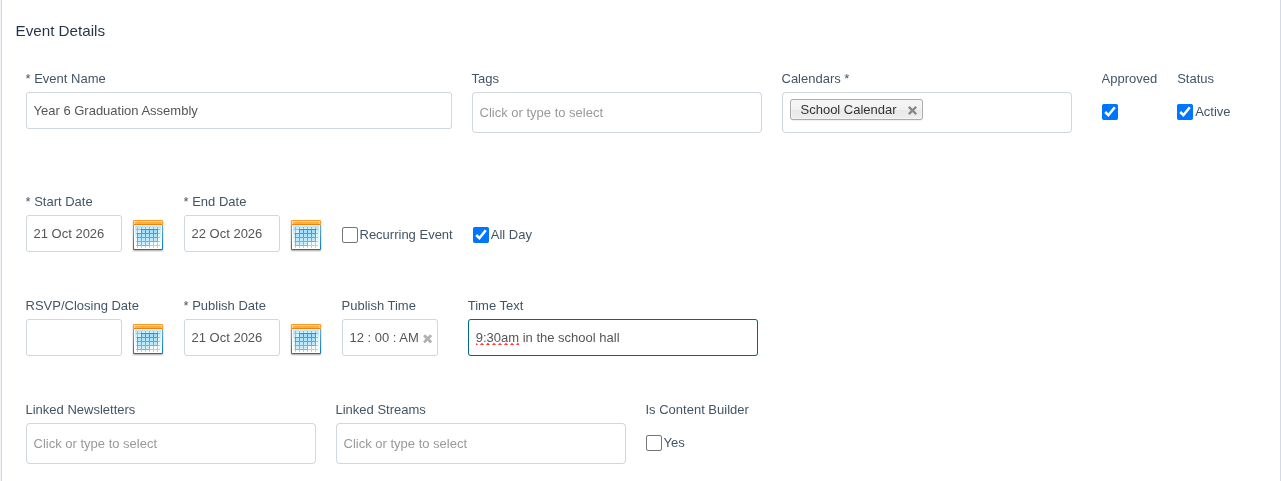
- Type an Event Name, for example “Year 6 Graduation Assembly”.
- Under Calendars, choose which calendar the event belongs to, such as School Calendar. Start typing to find it.
- Add Tags if you use them, for example a year level or “Excursions and Incursions”. Tags help families filter the calendar.
- Set the Start Date and End Date. Untick All Day to set start and end times.
- Use Time Text for a friendly description of the time, such as “9:30am in the school hall”.
- Click Save in the bottom-right corner.
Your event is saved and shows straight away on the calendar you chose.
More event options #
Dates and visibility #
- Recurring Event: repeat the event, for example every week for a sports training session.
- RSVP/Closing Date: the last day families can respond or book.
- Publish Date and Publish Time: when the event appears on your calendar. Set a future date to have it appear later.
- Approved and Status: untick these to keep the event hidden while you work on it.
- Linked Newsletters and Linked Streams: add the event to a newsletter or a Live News Stream as you create it.
Event content #
Expand Event Content to add a picture, a flyer and a description.
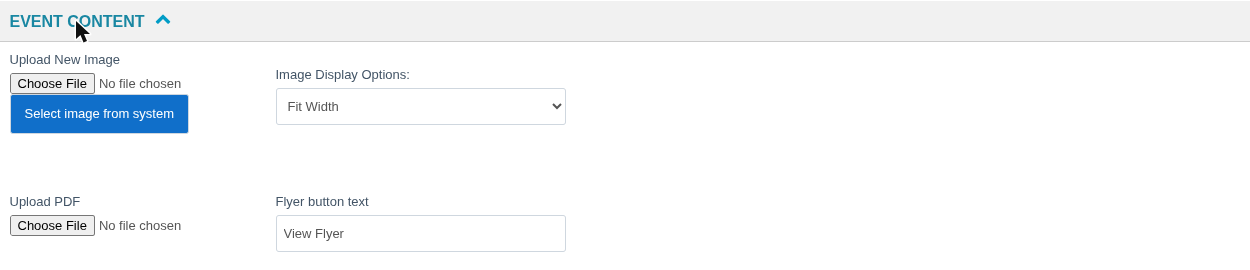
- Upload New Image, or Select image from system to use a photo from your Media Library.
- Upload PDF attaches a flyer. Flyer button text sets the words on the download button.
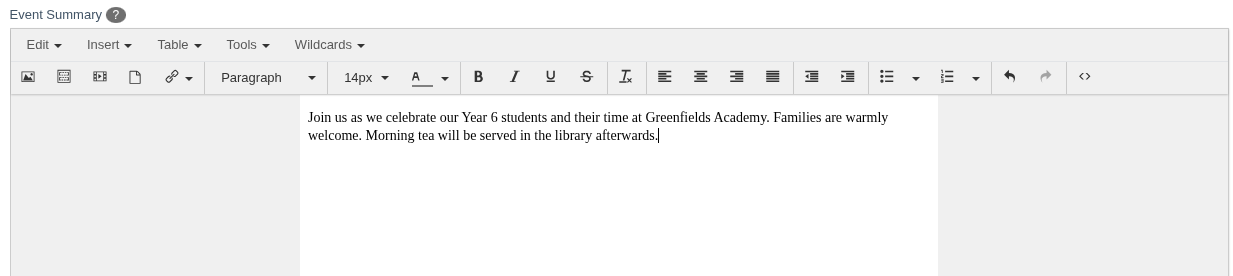
- Event Summary is a short description shown in calendar lists.
- Event Content is the full description families see when they open the event.
Event location #
Expand Event Location to say where the event is. For an event at school, filling in Location (for example “School Hall”) is usually enough. For an excursion, add the full address.

Advanced options #
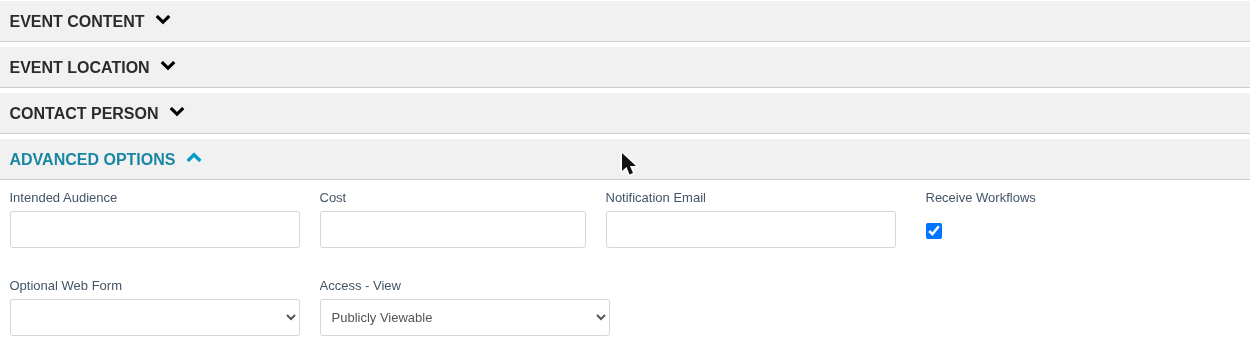
- Intended Audience and Cost: who the event is for, and any cost to families.
- Notification Email: who receives an email when a family books. If you leave it blank, your school’s usual notification address is used.
- Optional Web Form: attach one of your custom online forms, such as a permission form.
- Access – View: choose who can see the event. Most events are Publicly Viewable.
After you save #
From the event’s page you can:
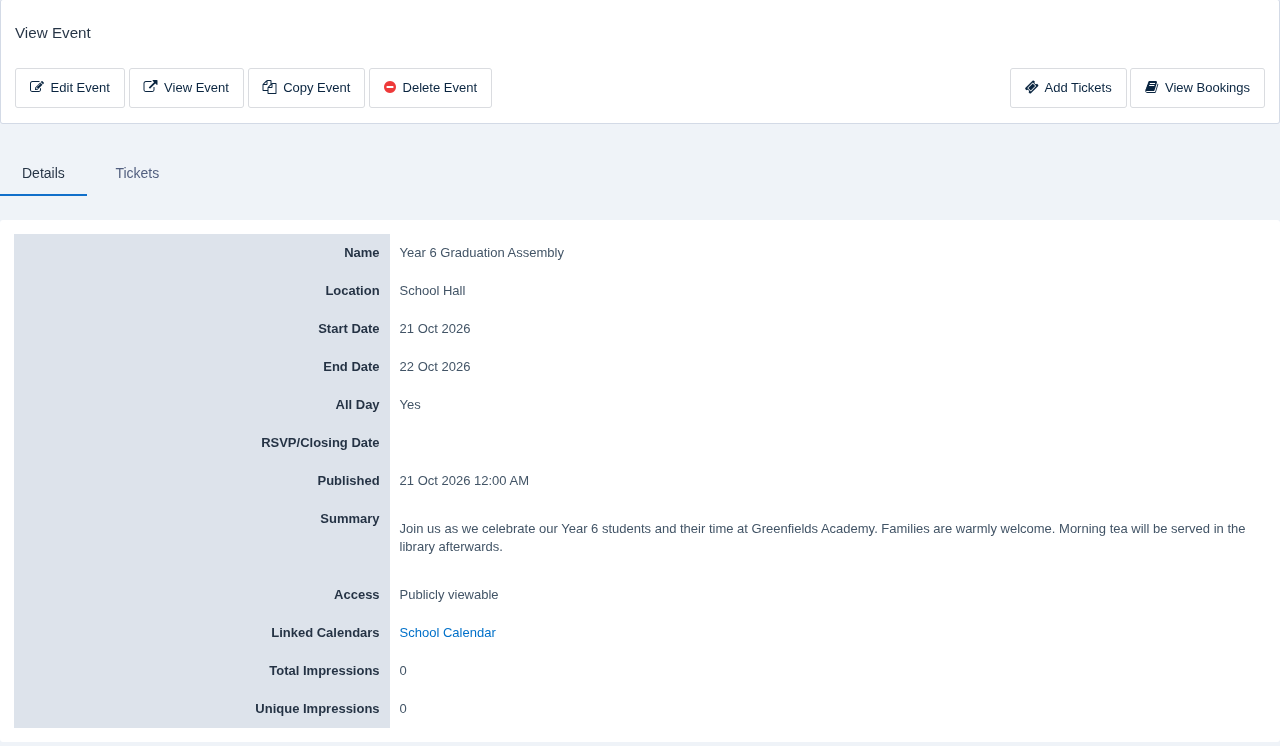
- Edit Event to make changes.
- View Event to see it as families will.
- Copy Event to start a similar event without retyping everything.
- Add Tickets and View Bookings if families book places for the event.
To add the event to a newsletter, use Link Event in the newsletter builder.
Related articles #
Need a hand? #
Our Customer Success Team is here to help. Call 1300 795 503, email [email protected] or start a live chat in your Schoolzine account.


