
A poll asks one quick question with a few answers to choose from, such as “Which theme should we choose for Book Week?” Polls are fast for families to answer and easy to drop into a newsletter.
Find your polls #
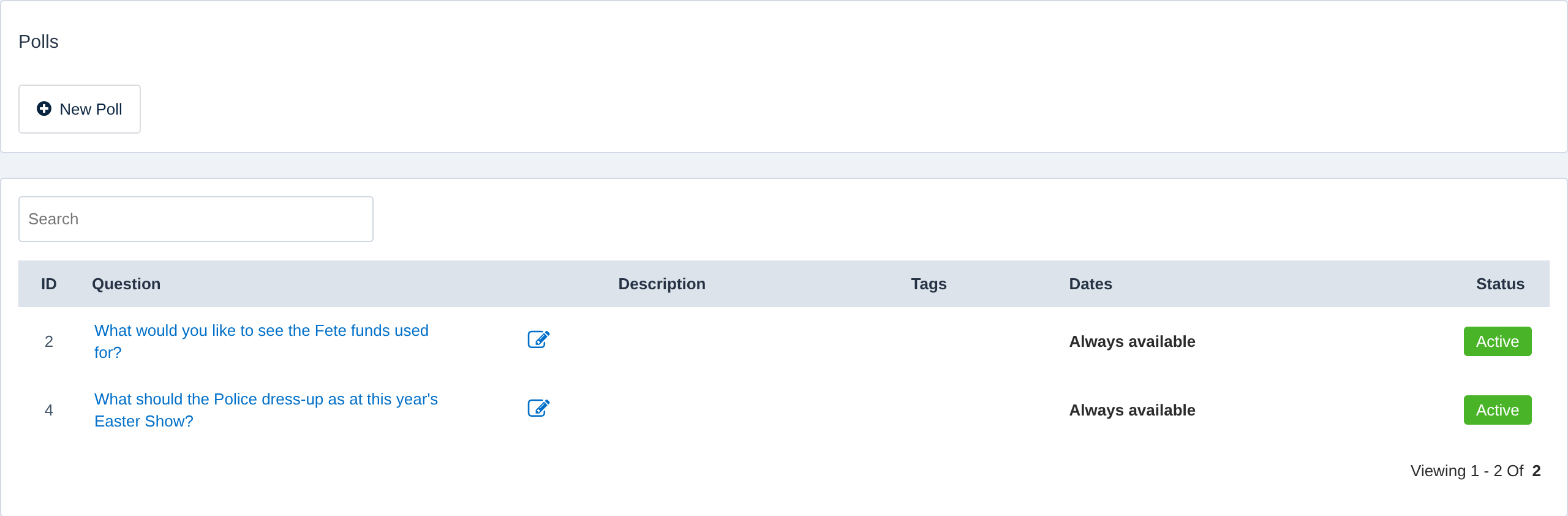
In the Control Centre, select Content → Polls. The list shows each poll’s question, when it’s available and whether it’s Active. Click a poll’s pencil to edit it.
Create a poll #
- Click New Poll.
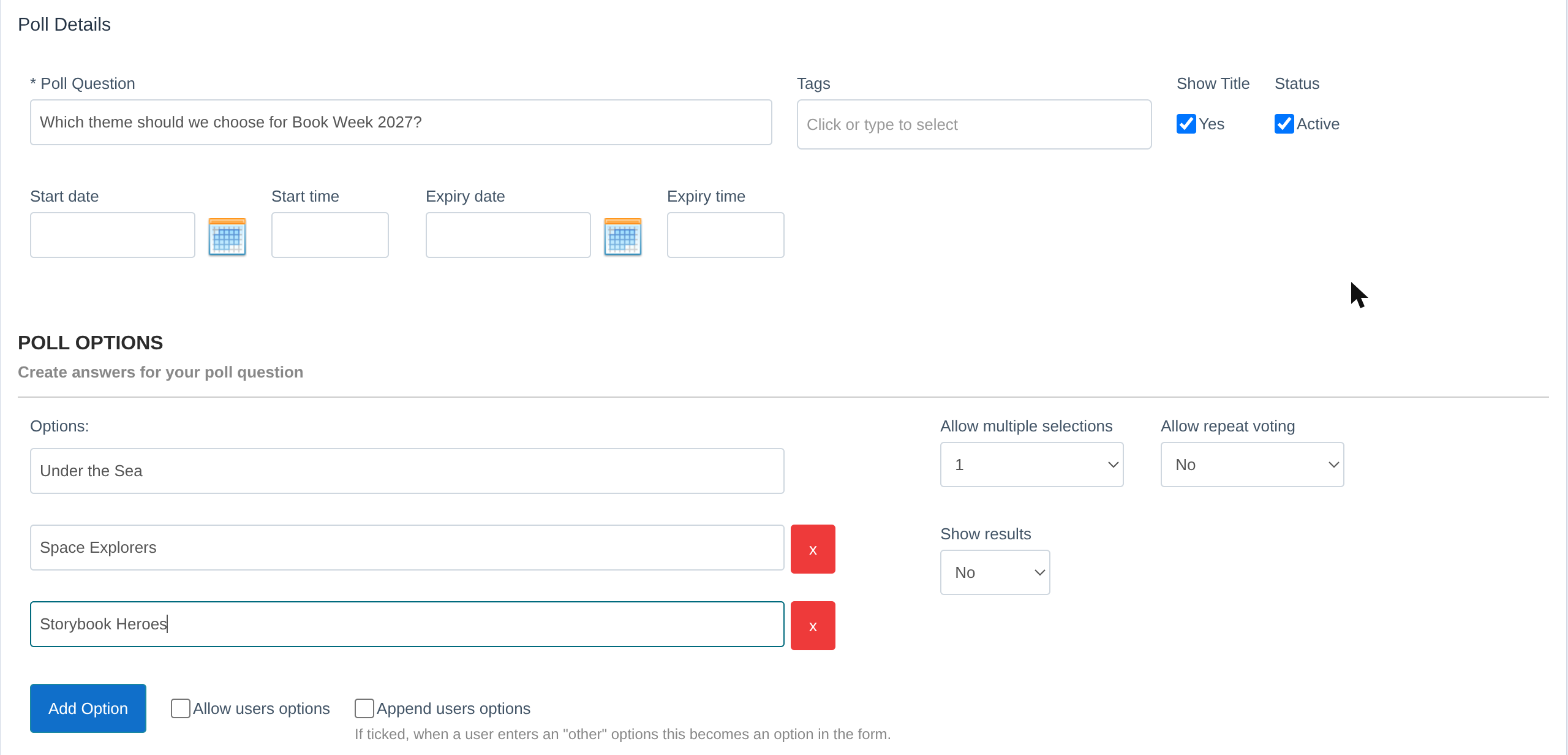
- Type your Poll Question.
- Leave Status ticked as Active so families can vote. Untick Show Title if you don’t want the question shown as a heading.
- To open and close voting automatically, set a Start date and Expiry date with times. Leave them blank to keep the poll open.
- Under Poll Options, type the first answer in Options. Click Add Option for each extra answer. Click the red x to remove one.
- Click Save.
Poll options #
- Allow multiple selections: how many answers each person can choose.
- Allow repeat voting: whether someone can vote more than once.
- Show results: whether voters see the results after they vote.
- Allow users options: adds an “other” box so families can write their own answer. Tick Append users options as well to add their answers to the list for others to choose.
- Poll Content: add a Description and a Feature Image to give the question some context.
Add a poll to a newsletter #
In the newsletter builder, add a Poll element to an article and choose your poll. Families can vote right from the newsletter.
Related articles #
Need a hand? #
Our Customer Success Team is here to help. Call 1300 795 503, email [email protected] or start a live chat in your Schoolzine account.


