
Every article in your newsletter has its own settings, and you can reuse articles and calendar events from earlier issues.
Article controls #
Hover over an article’s heading to see its controls in the top-right corner.

- Cog: open the article’s settings.
- Bin: remove the article from this newsletter.
- Arrows: move the article up or down. Everything in it moves too. The arrows only appear when the newsletter has more than one article.
Important: If an article appears only in this newsletter, removing it and saving deletes it for good. If it’s also linked to other newsletters, the bin only removes it from this one.
Article settings #
Click the cog to open the article’s settings.
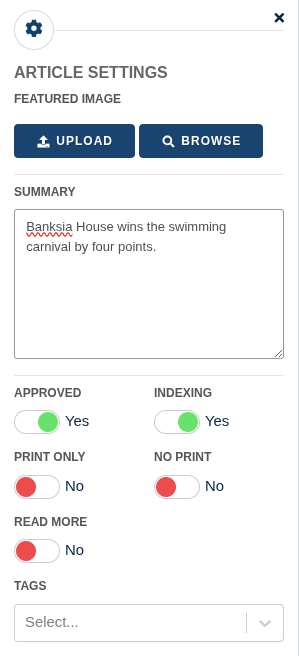
- Featured Image: a photo that represents the article wherever a preview of it is shown.
- Summary: one or two sentences about the article, used in previews.
- Approved: whether the article is approved. If your school approves contributors’ articles before they go out, unapproved articles wait under Content → Approve Content.
- Indexing: whether the article’s heading appears in the table of contents.
- Print Only: show the article in the printed newsletter only.
- No Print: show the article online only, and leave it out of the printed newsletter.
- Read More: shorten a long article to its first few lines, with a Read More button that opens the rest.
- Tags: add tags so the article is easier to find later.
Reusing an article from an earlier newsletter #
Click the + between two articles and choose Link Article. Search for the article by title, author or tag.
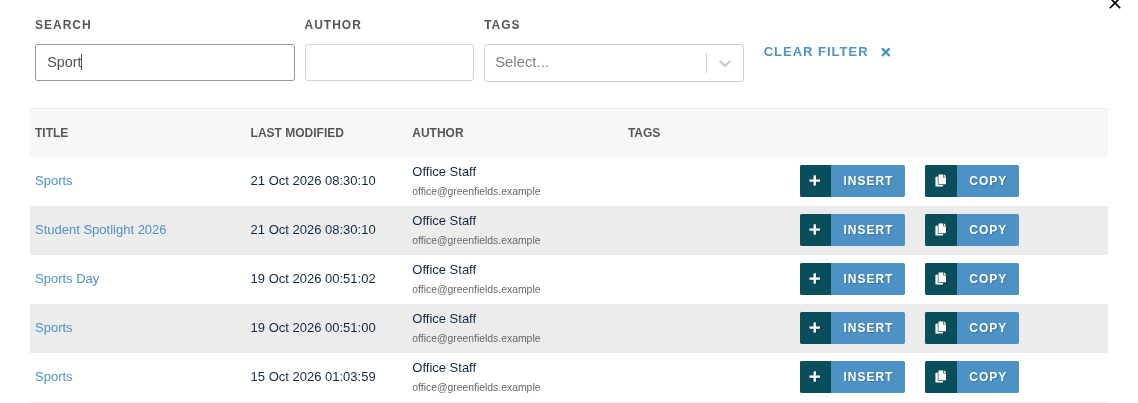
You have two options:
- Insert adds the same article. It’s shared between the newsletters, so a change in one shows up in every newsletter it’s linked to, including ones you’ve already sent.
- Copy adds a separate copy. Changes to the copy don’t affect the original.
Tip: If you’re unsure, choose Copy. It’s the safe choice when you want to update last term’s article for this term.
Some articles from your system office can’t be copied. You can still insert them as they are.
Adding a calendar event #
Choose Link Event from the + ribbon to add an event from your school calendar, such as a working bee or a sports day. Search for the event and click Insert. Open the event’s cog to add a flyer, or to change its dates and times.
Editing an article from the Control Centre #
You can also find and edit an article without opening its newsletter:
- In the Control Centre, open Content and select Articles.
- Click the article’s name.
- Click Edit Content.
Related articles #
Need a hand? #
Our Customer Success Team is here to help. Call 1300 795 503, email [email protected] or start a live chat in your Schoolzine account.


