
Each issue of your newsletter starts in the Control Centre. Once it’s set up, you add the articles in the newsletter builder.
Create the newsletter #
- Log in to your Control Centre and select Newsletters (previously eNewsletters) from the menu.
- Click New eNewsletter at the top of the list.
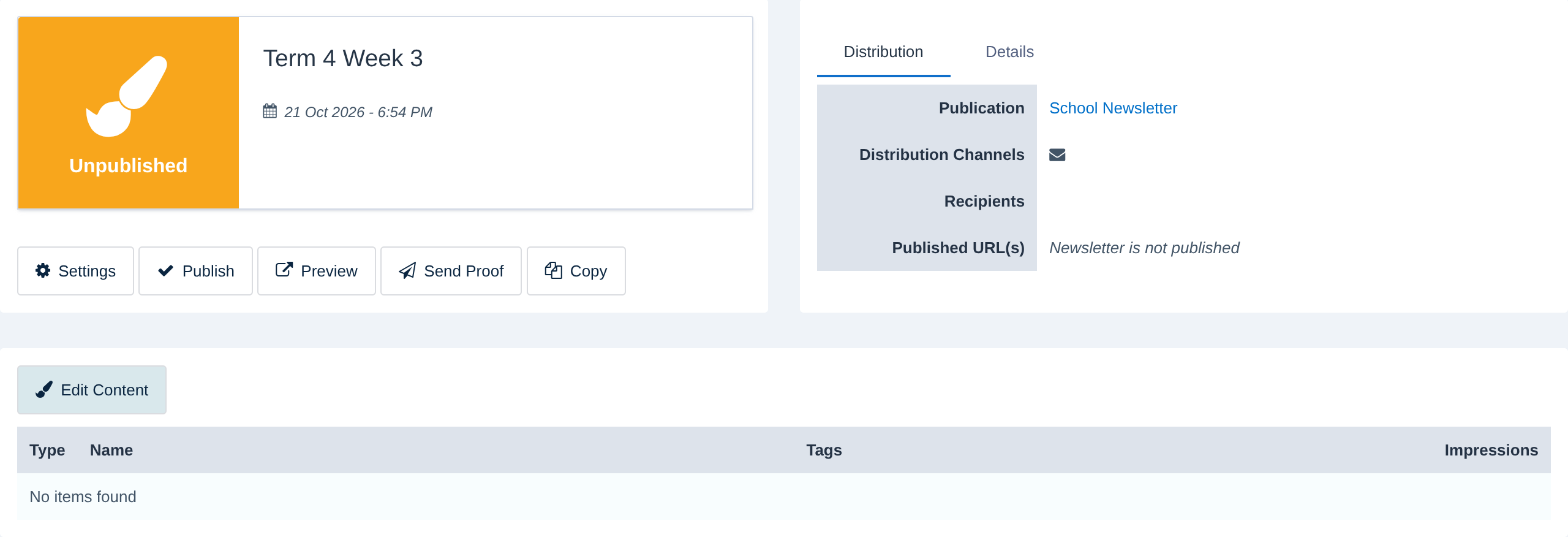
- Type a Newsletter Title, for example “Term 4 Week 3”. Families see this title at the top of the newsletter and in your newsletter archive.
- Choose a Publication. Most schools use School Newsletter. The publication decides the design and who the newsletter goes to.
- Click Save in the bottom-right corner.

Your newsletter is saved as Unpublished, so nobody can see it until you’re ready. From here, click Edit Content to open the newsletter builder and add your articles.
Advanced settings #
Click Advanced Settings before you save to fine-tune the newsletter. You can come back and change these later from the newsletter’s Settings button.
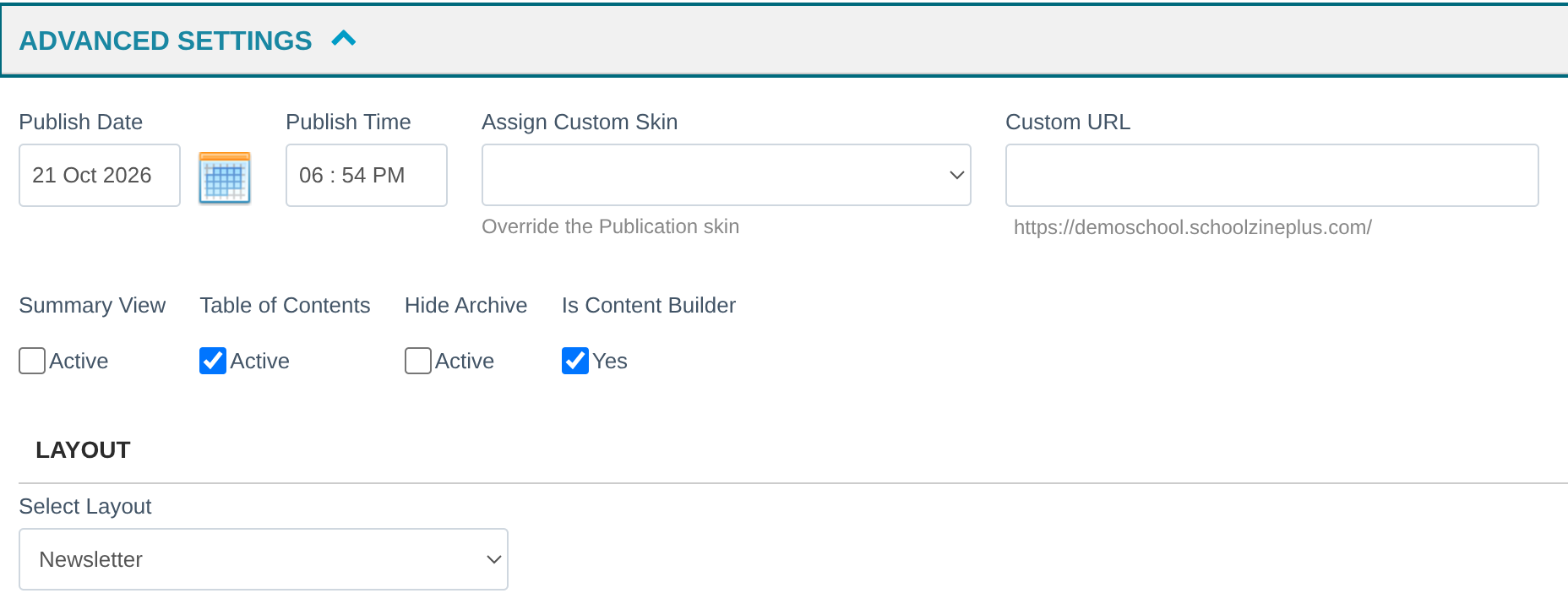
- Publish Date and Publish Time: when the newsletter goes live. They start as the current date and time.
- Assign Custom Skin: use a different design for this issue only, such as a Christmas or end-of-year edition. Leave it blank to use your publication’s usual design.
- Custom URL: give this issue its own web address. Each newsletter needs a different one.
- Table of Contents: shows a list of articles at the top of the newsletter. It’s on by default. For a newsletter with three articles or fewer, you may prefer to turn it off.
- Hide Archive: keeps this issue out of your newsletter archive. This is handy for special editions.
- Summary View and Layout: leave these as they are unless our Customer Success Team has set them up for your school.
Tip: Need a newsletter that looks like last week’s? Open last week’s newsletter and click Copy. You’ll get a new newsletter with copies of its articles, ready to update. Changes to the copies won’t affect last week’s issue.
Related articles #
Need a hand? #
Our Customer Success Team is here to help. Call 1300 795 503, email [email protected] or start a live chat in your Schoolzine account.


