
Quick Send is for short messages that need to go out now, like a late bus, a cancelled training session or an early finish. You write the message, choose your channels and groups, and send. Nothing else to set up.
Send a Quick Send message #
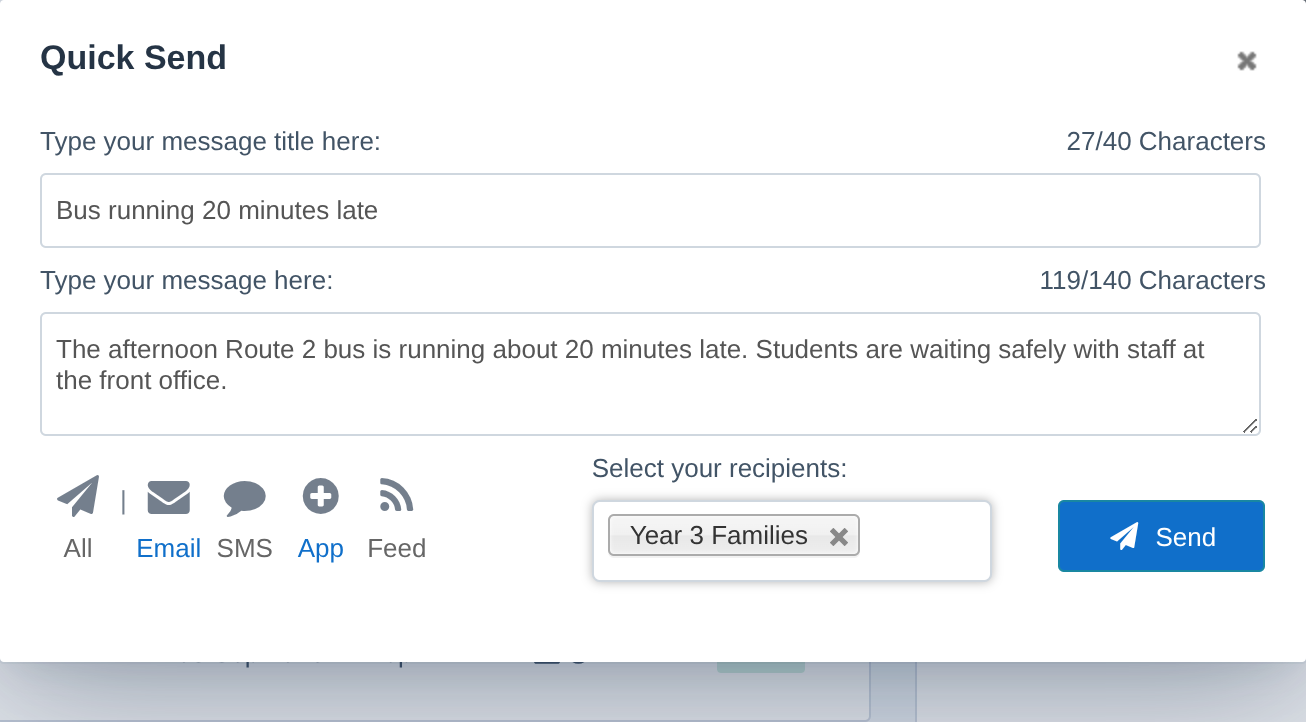
- In the Control Centre, select Quick Send Message from the menu. The Quick Send box opens over the page you’re on.
- Type a title in Type your message title here (up to 40 characters). This becomes the email subject and the notification heading.
- Type your message in Type your message here (up to 140 characters, so it fits in an SMS).
- Click the channels to send on: Email, SMS, App (an SZ App notification) or Feed (your newsfeed). Selected channels turn blue. All picks every channel.
- Under Select your recipients, choose one or more groups.
- Click Send.
Important: Quick Send messages go out straight away. There’s no review step and no test email, so check the message and groups before you click Send.
After you send #
The emails use your school’s default email template, so they have your logo and contact details.
Your message appears on the Communicate page as “Quick Send – ” followed by the title. Open it there to see who received it and how many people opened it.
Tip: If you need to schedule a message, send a longer one, or check a test email first, use New Message in Communicate instead.
Related articles #
Need a hand? #
Our Customer Success Team is here to help. Call 1300 795 503, email [email protected] or start a live chat in your Schoolzine account.


