
A stream is a live news page on your school website. Instead of waiting for the next newsletter, you add articles and events to the stream as they happen, so families always have the latest news.
Find your streams #
In the Control Centre, select Streams from the menu. The list shows each stream with its summary and how many times it’s been viewed.
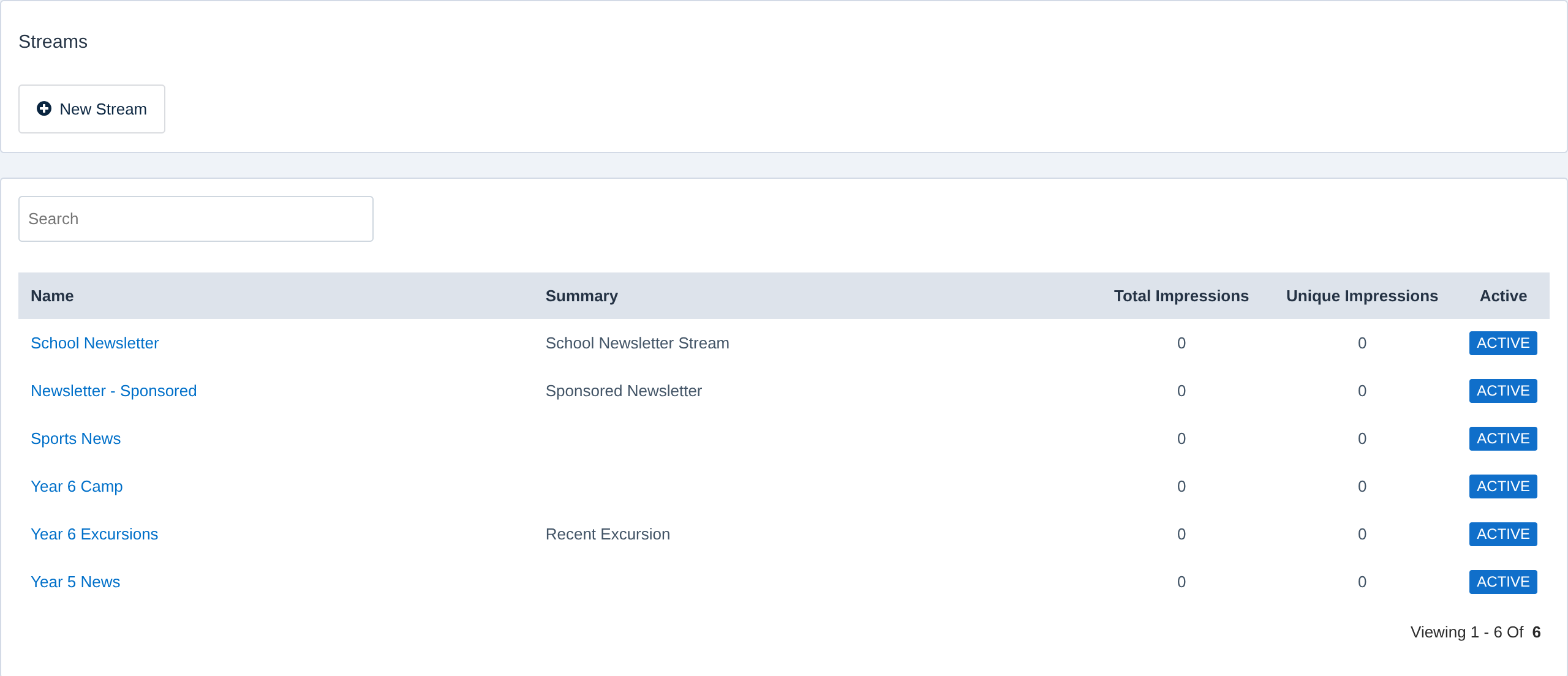
Create a stream #
- Click New Stream.
- Type a Name, such as “Sports News”, and the URL families will visit, such as
/sports-news. - Add a short Summary.
- Choose a Blueprint Layout for the page design and, optionally, a Skin.
- Leave Status ticked as Active, then click Save.
Add articles and events #
Open the stream from the list. Its page shows the stream’s web address and the articles and events in it.
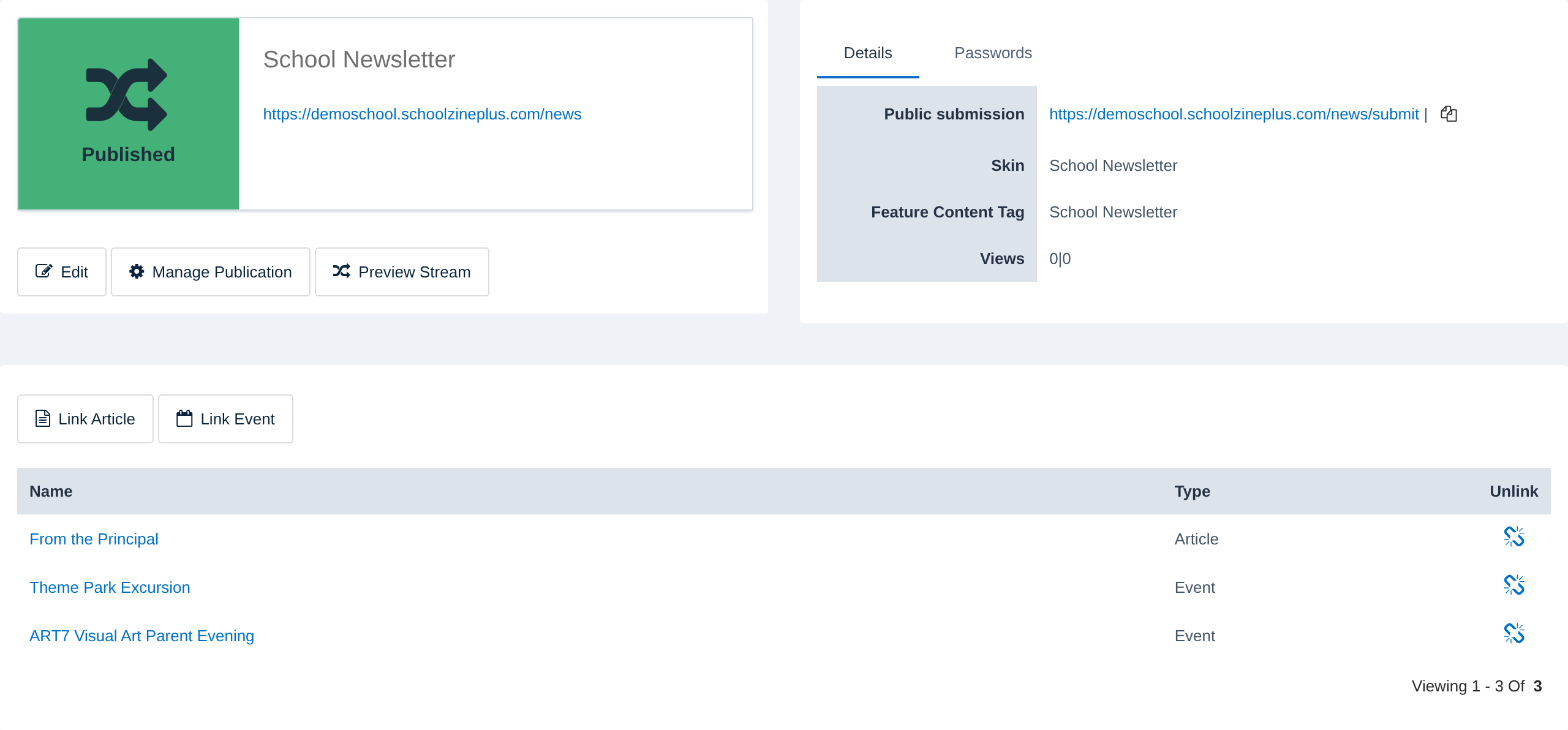
- Click Link Article to add an article you’ve written, for example in the newsletter builder.
- Click Link Event to add an event from your calendar.
- Click the unlink icon to take something off the stream. The article or event itself isn’t deleted.
- Click Preview Stream to see the page as families do.
You can also add an event to a stream when you create it, using Linked Streams on the event form.
Tip: The same article can appear in your newsletter and a stream. Write it once and link it to both.
Related articles #
Need a hand? #
Our Customer Success Team is here to help. Call 1300 795 503, email [email protected] or start a live chat in your Schoolzine account.


