
If you’ve planned a term or a year of dates in a spreadsheet, you can import them all in one go rather than adding each event by hand.
Prepare your spreadsheet #
- In the Control Centre, select Events, then click Import Events.
- Click Example CSV to download a template with the right columns.
- Fill in one row per event, then save the file as a CSV file. In Excel, choose File → Save As and pick CSV (Comma delimited).
Tip: Keep dates in one consistent format throughout the spreadsheet, such as 14/11/2026. Mixed formats can stop events importing correctly.
Import the file #
The import walks you through five steps: Upload File, Map Fields, Calendar, Progress and Completed.
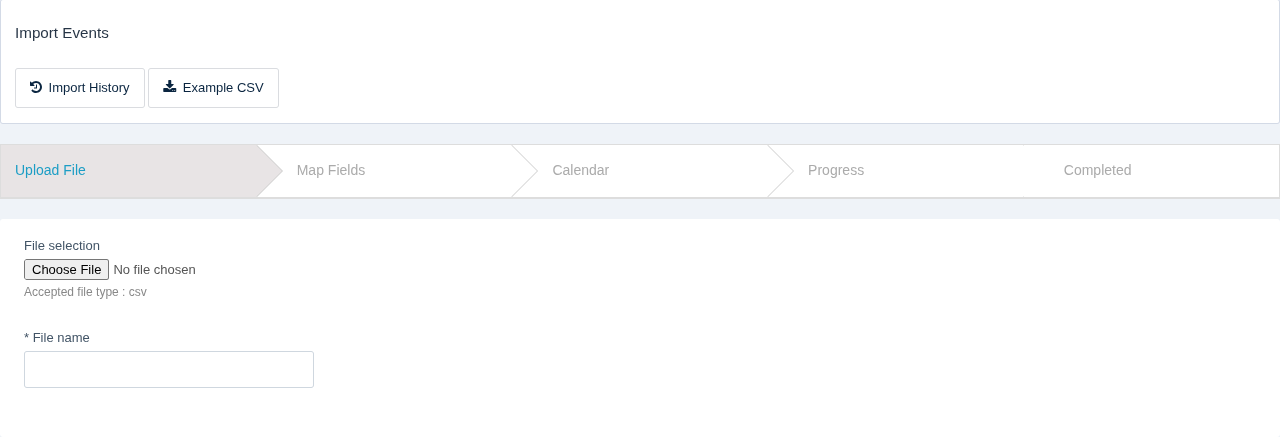
- Upload File: click Choose File, select your CSV, and give the import a File name you’ll recognise later, such as “Term 1 2027 dates”.
- Map Fields: match each column in your spreadsheet to an event field, such as name, start date or location.
- Calendar: choose the calendar the events should go into.
- Progress: wait while your events are added.
- Completed: check the summary of what was imported.
Check your import #
Open Events and look through the new events in List View or Calendar View. Click Import History on the import page to see past imports.
Events with a missing date, or with an end date before their start date, appear under Invalid Events on the Events page, so you can find and fix them.
Related articles #
Need a hand? #
Our Customer Success Team is here to help. Call 1300 795 503, email [email protected] or start a live chat in your Schoolzine account.


