
When your newsletter is ready, send a proof to check it in a real inbox, then publish it and send it to your families. All of this happens on the newsletter’s page in the Control Centre.

Send a proof #
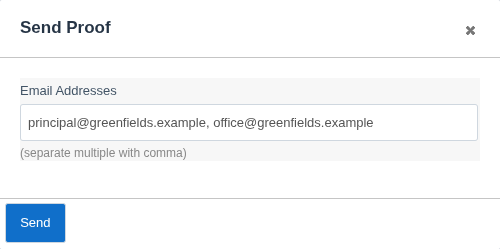
A proof is a test email of the newsletter. Only the people you choose receive it.
- Click Send Proof.
- Type one or more email addresses, separated by commas. Your own address is filled in for you.
- Click Send.
Tip: Send the proof to a colleague as well as yourself. A second pair of eyes catches the typos you’ve stopped seeing.
You can also click Preview to open the newsletter in a new tab, just as it will look once it’s published.
Publish and send #
Click Publish. If your account lets you send newsletters, a window opens where you choose when it goes out:
- Send Date and Send Time: when the email goes to families. Set a future time to schedule it.
- Auto send without review: publish the newsletter and send it at the scheduled time.
- Review before distribution: open the email in Communicate, where you can check the recipients and the email before sending.
If your account doesn’t send newsletters, Publish simply puts the newsletter online, ready for a colleague to send.
Important: Once a newsletter has been emailed, it can’t be unsent. Always send yourself a proof first.
Once published, the newsletter shows as Published, and its web address appears under Published URL(s). Click Copy next to the address to share the link anywhere, for example on your website or in a text message.
Send a newsletter that’s already published #
If a newsletter is published but hasn’t been emailed yet, click Distribute under the distribution details. You’ll see the same send options as above.
Unpublish a newsletter #
To take a newsletter offline, click Unpublish. It disappears from your website and archive. Emails you’ve already sent still point to it, so check before you unpublish an issue families may still be reading.
Related articles #
Need a hand? #
Our Customer Success Team is here to help. Call 1300 795 503, email [email protected] or start a live chat in your Schoolzine account.


