
Each article in the newsletter builder is made from content elements. You add them one at a time from the bar underneath the article, then click into each one to fill it in.
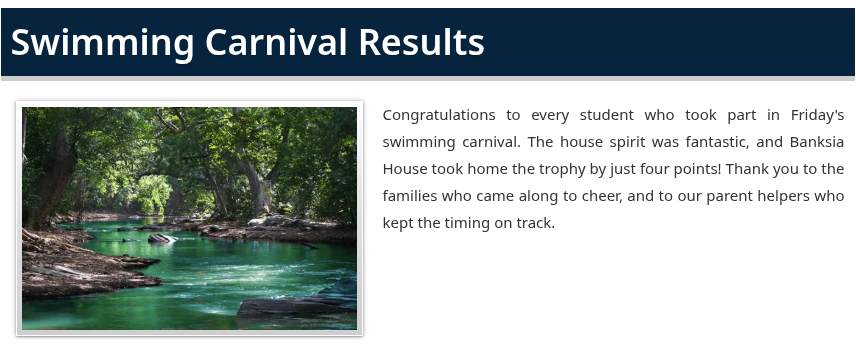
Adding and arranging elements #
Click any button on the bar under an article to add that element to the end of the article. Hover over an element to see its controls on the right:
- Cog: open the element’s settings in a panel on the right of the screen.
- Bin: remove the element. You’ll be asked to confirm first.
- Arrows: move the element up or down within the article.

Note: The arrows move an element within its own article. To move content into a different article, add a new element there and copy the content across.
Text #
Click into any text to start typing. Select a word or a line to bring up the formatting toolbar.

From the toolbar you can:
- make text bold, italic or underlined
- turn a line into a subheading with H3 or H4
- change the font, size, colour and alignment
- create bulleted or numbered lists
- add a link
- turn a quote into a pull quote, which stands out from the text around it
- clear formatting from pasted text with the T× button
Tip: Pasting from Word or an email can bring odd formatting with it. Select the pasted text and click T× to clear it.
Images #
Click an image, or the grey placeholder, to open its settings panel.
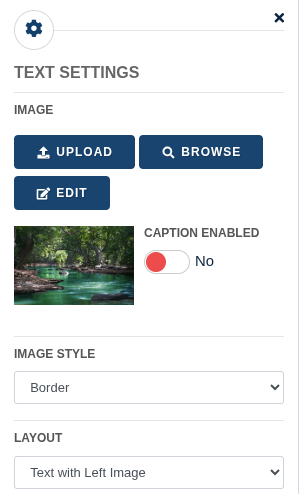
- Click Upload to add a photo from your computer, or Browse to choose one from your Media Library.
- Choose an Image Style, such as Border or No Border.
- Turn on Caption Enabled to add a caption under the photo.
- To resize the photo, drag one of the small blue handles on its corners. Click Reset Size to go back to the original size.
Edit opens the photo in an editor where you can crop and adjust it.
Link Button #
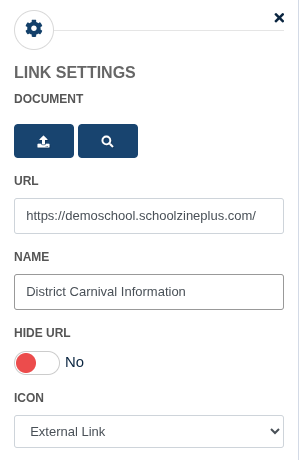
A Link Button sends families to a web page, such as a booking form, payment page or event details.

Open its settings to change:
- URL: the web address the button opens.
- Name: the words on the button.
- Hide URL: hide the web address under the name.
- Icon: choose the icon shown on the button.
- Document: link to a document instead of a web page.
Flyer #
A Flyer attaches a PDF, such as an excursion note or a permission form.
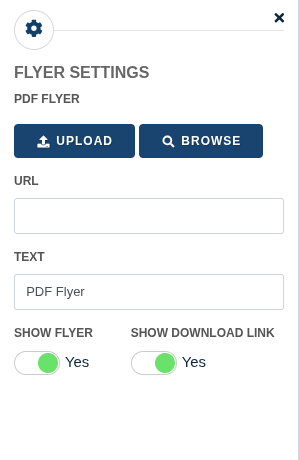
- Upload a PDF or Browse for one you’ve already uploaded.
- Text sets the label families see.
- Show Flyer shows the PDF inside the newsletter.
- Show Download Link adds a button to download it.
Video #
You can upload your own video or add one from YouTube or Vimeo.
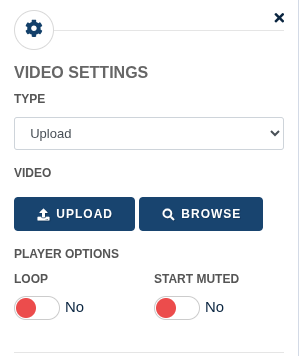
- Upload: choose Upload as the Type, then upload a video file or Browse for one you’ve already uploaded. Your video plays straight from the newsletter, without ads or suggested videos from other channels.
- YouTube or Vimeo: choose the type and paste the video’s web address.
- Loop plays the video on repeat. Start Muted plays it without sound until the reader turns sound on.
Tip: Large videos take a few minutes to upload and process. Keep the builder open until the upload finishes.
Gallery and Audio #
- Gallery shows several photos together. In its settings, add photos from your computer or your Media Library, give the gallery a Gallery Name, and choose whether to show that name with Show Gallery Title.
- Audio adds a sound clip, such as a choir performance or a podcast episode.
Polls, forms and surveys #
Poll and Form/Survey add a poll, form or survey you’ve already set up under Content in the Control Centre. Click the element, find the one you want and click Insert.
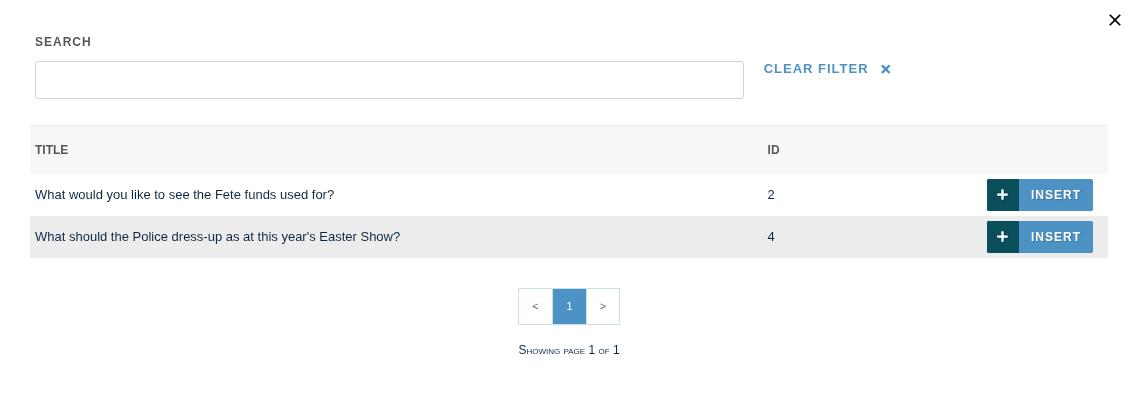
In the builder, the poll shows as a placeholder with its question. Families see the full poll in the published newsletter.
Colour Box and Border Box #
Use a Colour Box or Border Box for information you don’t want families to miss, such as a reminder or a change of date. Type straight into the box, then open its settings to choose the Border Colour, Background Colour and Text Colour.
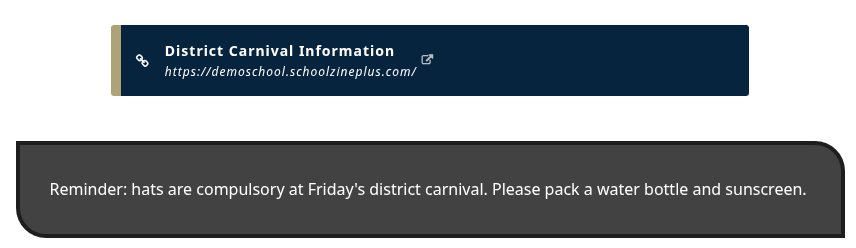
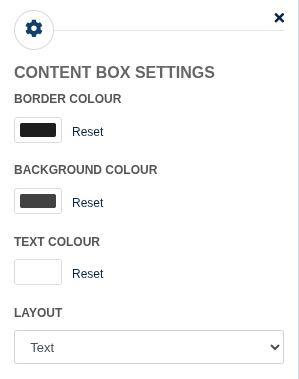
Tip: Keep box colours readable: dark text on a light background, or light text on a dark one.
Remember to save #
Click Save Changes in the toolbar regularly. The button shows Saved once everything is up to date.
Related articles #
Need a hand? #
Our Customer Success Team is here to help. Call 1300 795 503, email [email protected] or start a live chat in your Schoolzine account.


